
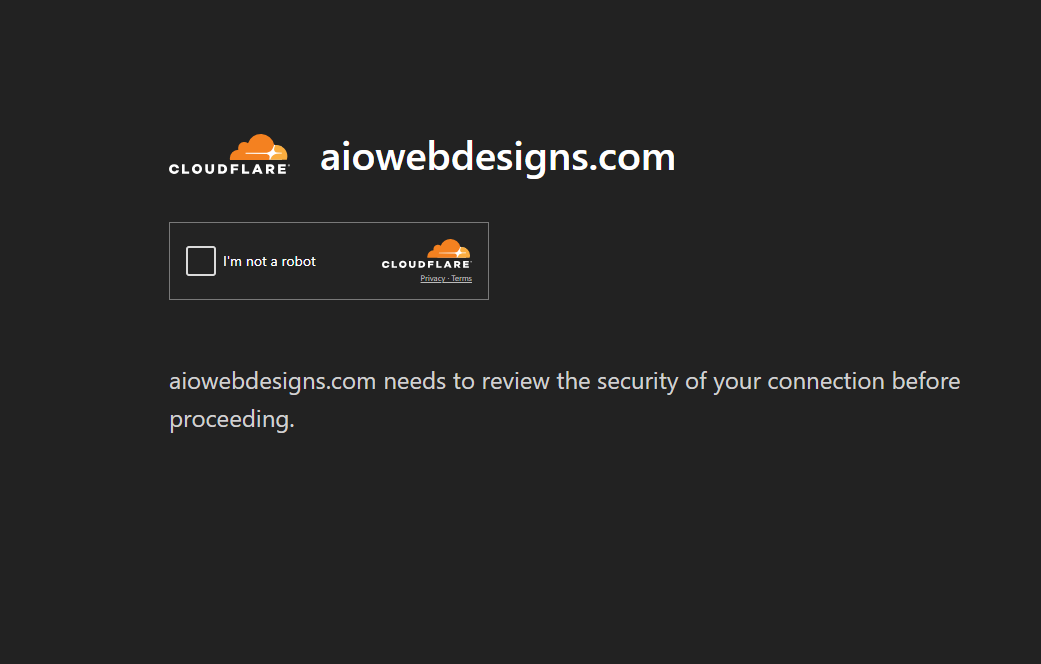
During a recent website security investigation, the AIO Web Designs team discovered unauthorized WordPress plugins using names such as XDav Tracker, XDav TrackerD, Tracker-user, and User-Tracker. Some affected websites displayed a fraudulent Cloudflare verification screen to desktop visitors while continuing to work normally for mobile users and logged-in WordPress administrators.
This guide explains what XDav Tracker malware is, how fake Cloudflare verification attacks work, the warning signs of a compromised WordPress website, and the exact steps you can take to remove the infection and protect your site from reinfection.
What Is XDav Tracker Malware?
XDav Tracker malware is the name we are using for a malicious WordPress plugin discovered during our investigation. It should not be confused with a legitimate analytics or visitor-tracking plugin.
The malicious XDav Tracker sample we reviewed was designed to inject obfuscated JavaScript into the public-facing portion of a WordPress website. It also contained code intended to prevent the malicious content from appearing to logged-in administrators. This helped the infection remain hidden while ordinary website visitors received a different experience.
The plugin exhibited several major warning signs:
- It had no legitimate developer or author information.
- It used a generic tracking-related plugin name.
- It attempted to hide itself from the WordPress Plugins screen.
- It avoided showing its payload to logged-in administrators.
- It injected obfuscated JavaScript into public website pages.
- It connected to outside infrastructure to retrieve additional code.
We also discovered unauthorized placeholder plugins with names such as Tracker-user. One sample contained only a basic WordPress plugin header and no active functionality. Even when a suspicious plugin appears empty, it should still be removed if nobody authorized its installation. It may be a decoy, campaign marker, abandoned component, or evidence that an attacker had administrative access to the website.
Wordfence has documented other malware campaigns in which malicious code was disguised as an ordinary WordPress plugin, hidden from the administrative dashboard, and used to maintain unauthorized access. You can read more in the Wordfence report, Interesting WordPress Malware Disguised as a Legitimate Plugin.
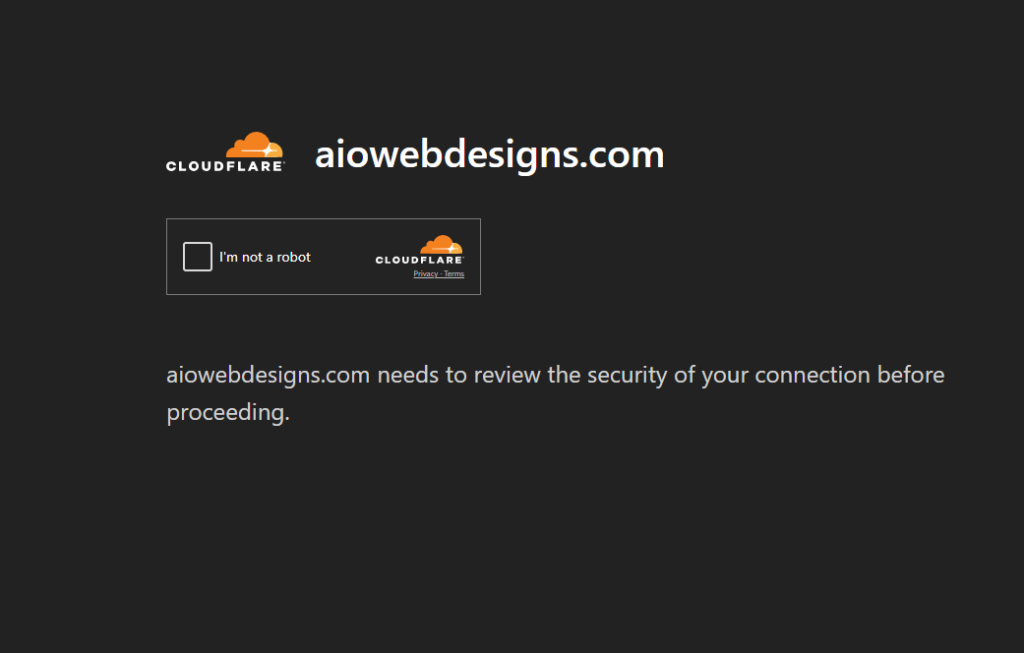
What Is a Fake Cloudflare Verification Attack?
A fake Cloudflare verification attack imitates a familiar browser security challenge. The page may display Cloudflare branding, a loading animation, a verification checkbox, or instructions claiming the visitor must prove they are human.
The page is not necessarily being provided by Cloudflare. A website can display a fake Cloudflare screen even when it does not use Cloudflare for DNS, hosting, security, or content delivery.
These attacks are frequently associated with a social-engineering technique called ClickFix. Instead of exploiting the visitor’s computer automatically, ClickFix attempts to persuade the visitor to run the malicious code personally.
A fraudulent verification page may instruct the visitor to:
- Press Windows + R.
- Open PowerShell, Command Prompt, or Terminal.
- Press Ctrl + V to paste a command.
- Run a command to complete verification.
- Download and open an unknown file.
- Install a browser extension.
- Allow suspicious browser notifications.
- Disable antivirus or browser protection.
A legitimate website verification process should never require visitors to paste commands into Windows Run, PowerShell, Command Prompt, or a Mac terminal.
The Cybersecurity and Infrastructure Security Agency describes ClickFix as a technique in which fake errors or CAPTCHA prompts instruct users to copy and paste malicious code. Read the official CISA overview at CISA: Malicious Copy and Paste, T1204.004.
Microsoft has also reported that ClickFix campaigns target thousands of enterprise and end-user devices and can ultimately lead to information theft. See Microsoft: Think Before You Click(Fix).
Sucuri has documented compromised WordPress websites displaying fraudulent Cloudflare verification pages and delivering information-stealing malware. Additional details are available in Sucuri’s report on fake Cloudflare verification and LummaStealer.
Why Does the Fake Cloudflare Page Only Affect Certain Visitors?
One of the most confusing characteristics of this WordPress malware is selective delivery. A website may appear normal to the owner while customers, employees, or first-time desktop visitors see the fake verification page.
The injected script may evaluate information about the visitor before displaying its payload. That information can include:
- Desktop versus mobile device
- Windows versus macOS
- Browser type and version
- Whether the visitor is logged into WordPress
- Previously stored cookies
- The referring website or search engine
- The visitor’s IP address or approximate location
- Whether the visitor has already received the malicious prompt
- Whether the request resembles a security scanner or crawler
This behavior is often referred to as cloaking. It helps malicious code avoid detection by administrators, hosting scanners, security tools, and search-engine crawlers.
Sucuri has investigated malicious JavaScript that loads a full-screen iframe over a legitimate website. The visitor believes the fake Cloudflare screen belongs to the website, even though the visible content is being loaded from another source. See Sucuri: Malicious JavaScript Injects a Full-Screen Iframe.
This is why a website should be tested on multiple desktop devices, mobile devices, browsers, networks, and logged-out sessions. A successful mobile test does not prove that the desktop version is safe.
Warning Signs of an XDav Tracker or ClickFix WordPress Infection
Investigate your website immediately if you notice any of the following:
- A Cloudflare verification screen on a site that does not use Cloudflare
- The website working on mobile but failing on desktop
- The website working while logged in but failing while logged out
- Plugins that nobody remembers installing
- Plugins with no author, description, or official website
- Plugin names containing tracker, user, system, support, or update
- A WordPress administrator account named root
- An administrator using an address such as admin@wordpress.com
- Plugin folders visible in hosting but missing from WordPress
- Unexpected PHP files inside wp-content/uploads
- Recently modified WordPress core or theme files
- Unknown WPCode, header, footer, or Google Tag Manager scripts
- Redirects to unfamiliar websites
- Deleted plugins or administrator accounts returning later
An unauthorized administrator account is a particularly serious sign. It means the attacker may have enough access to reinstall malicious plugins, modify files, add scheduled tasks, create additional users, or alter the database.
How to Remove XDav Tracker Malware From WordPress
Step 1: Restrict Public Access
If visitors are actively receiving the fake verification page, place the website in maintenance mode. A hosting-level maintenance page is preferable because it can bypass the compromised WordPress installation, active theme, plugins, and injected scripts.
Do not leave visitors exposed while investigating an active malware-delivery page.
Step 2: Create a Full Backup
Create and download a complete backup of the website files and database before removing anything. Save hosting access logs when they are available.
Label this backup as potentially infected. It should be retained for evidence and troubleshooting, not automatically treated as a clean restoration point.
Record the following details for suspicious files and plugins:
- Full folder path
- Plugin name and version
- File modification date
- Displayed author information
- Associated administrator accounts
Step 3: Remove Unauthorized Plugins
In WordPress, open Plugins > Installed Plugins. Deactivate and delete plugins that were not intentionally installed, including suspicious variations such as:
- XDav Tracker
- XDav TrackerD
- Tracker-user
- User-Tracker
Next, use your hosting File Manager or SFTP account to inspect:
/wp-content/plugins/
/wp-content/mu-plugins/
A malicious plugin can hide itself from the WordPress Plugins screen. Checking the filesystem is therefore essential.
Preserve a ZIP copy of a suspicious plugin only when it is needed for isolated analysis. Do not open, install, or execute the files on a personal computer.
Step 4: Remove Unauthorized Administrators
Open Users > All Users and verify every administrator. Delete any account (like Root@wordpress.com) that the business cannot identify.
When WordPress asks what to do with content assigned to the unknown account, attribute it to a legitimate administrator rather than deleting the content automatically.
For each legitimate administrator:
- Change the password.
- Use the option to log out everywhere else.
- Remove unknown application passwords.
- Confirm the account email address.
- Enable multifactor authentication.
Refresh the user list later. If the deleted administrator returns, a backdoor or persistence mechanism remains.
Step 5: Inspect Common Backdoor Locations
Review the following directories:
/wp-content/mu-plugins/
/wp-content/plugins/
/wp-content/themes/
/wp-content/uploads/
Also inspect these important files:
.htaccess
wp-config.php
index.php
wp-blog-header.php
wp-settings.php
Look for unexpected PHP files in the uploads folder, randomly named files, recently created directories, and files modified around the time the malicious plugins appeared.
Potentially suspicious code can contain terms such as:
eval(
base64_decode
gzinflate
atob(
fromCharCode
iframe
clipboard
powershell
wp_create_user
wp_insert_user
pre_user_query
all_plugins
Some legitimate plugins also use these functions. Do not delete a file based on one matching term. Compare questionable files with clean versions from WordPress.org or the original software vendor.
Step 6: Review Custom Script Locations
Inspect every area capable of inserting JavaScript or HTML into the website:
- WPCode
- Header Footer Code Manager
- Elementor Custom Code
- Divi Theme Options integrations
- Theme functions.php files
- Custom HTML widgets
- Google Tag Manager custom HTML tags
- Advertising and analytics integrations
Look for unfamiliar external domains, full-screen iframes, clipboard commands, obfuscated JavaScript, and scripts that evaluate the visitor’s browser or operating system.
Step 7: Reinstall WordPress Core
Open Dashboard > Updates and use Reinstall WordPress. This replaces standard WordPress core files without removing posts, pages, media, or database content.
Download clean plugin and theme packages only from WordPress.org or the original vendor. When a plugin folder may have been modified, delete the old folder before installing the clean package. Updating over an infected folder may leave unauthorized files behind.
Step 8: Update and Reduce Installed Software
Update WordPress, all legitimate plugins, all themes, and the supported PHP version provided by your hosting company.
Remove unused plugins, inactive themes, abandoned software, duplicate tools, and file-management plugins that are not actively needed. Every unnecessary component increases the website’s attack surface.
You can review known WordPress plugin vulnerabilities through the Wordfence Intelligence vulnerability database.
Step 9: Scan the Website
Use more than one scanning method because selectively delivered malware may avoid a particular scanner.
Recommended options include:
- Your hosting provider’s malware scanner
- A reputable WordPress file scanner
- Manual file and database inspection
- An external visitor-side scanner
Sucuri SiteCheck provides a free external scan for known malware, malicious code, blacklist status, and website errors. Remember that a remote scanner cannot inspect every server file and a clean result does not guarantee that no hidden backdoor exists.
Wordfence explains how its scanner reviews website files, posts, pages, and comments for malicious code, backdoors, shells, and known harmful URLs in its Wordfence scanning documentation.
Step 10: Purge Every Cache
Clear caches only after the malicious source has been removed.
- Purge the WordPress page cache.
- Flush Redis or object cache.
- Clear Elementor or Divi-generated assets.
- Purge Nginx, FastCGI, or server cache.
- Clear the hosting provider’s website cache.
- Purge the CDN cache, when applicable.
- Clear browser data for final testing.
Cache clearing alone is not a complete malware repair. It may remove a stored malicious page temporarily, but the page can return if the underlying plugin, backdoor, database injection, or unauthorized user remains.
Step 11: Rotate All Credentials
From a known-clean device, change:
- WordPress administrator passwords
- Hosting account password
- SFTP and FTP credentials
- Database password
- Domain registrar password
- Business email passwords
- WordPress management-platform credentials
- Premium plugin account passwords
- API keys and application passwords
Use a unique password for every website. Regenerate the WordPress authentication salts in wp-config.php to invalidate existing WordPress login cookies and sessions.
Step 12: Test the Website Thoroughly
Test the cleaned site using:
- Chrome, Edge, Firefox, and Safari
- Normal and private browsing windows
- Windows and macOS computers
- Mobile devices
- Direct URL entry
- A Google search-result click
- Separate internet connections
- Logged-in and logged-out sessions
- A device that has never visited the website
Do not assume the site is clean after one successful test. The malicious delivery system may target only selected devices or visitors.
Step 13: Monitor for Reinfection
For several days after cleanup, continue checking:
- Installed plugin folders
- Administrator accounts
- The mu-plugins directory
- Recently modified files
- Scheduled WordPress actions
- WordPress cron events
- Hosting login history
- SFTP and File Manager activity
- Security scan results
- Unexpected redirects or verification screens
If a deleted plugin or unauthorized user returns, the website still contains a backdoor. Escalate the incident to the hosting provider or a qualified WordPress security professional.
How to Protect WordPress From Future Malware
After removing XDav Tracker malware, strengthen the site to reduce the likelihood of reinfection.
- Use unique passwords for every WordPress website.
- Enable multifactor authentication for administrators and hosting accounts.
- Keep the number of administrator accounts as low as possible.
- Install WordPress, plugin, and theme updates promptly.
- Remove unused plugins and themes.
- Maintain daily off-site backups.
- Monitor files for unauthorized changes.
- Block PHP execution inside the uploads folder when appropriate.
- Restrict SFTP and hosting access.
- Review administrator accounts and plugins regularly.
- Enable hosting account login notifications.
- Use a web application firewall when practical.
- Train employees to recognize fake verification instructions.
CISA provides additional small-business guidance for recognizing online deception and reducing phishing risk at CISA: Teach Employees to Avoid Phishing.
Companies managing several WordPress websites should compare affected sites for shared administrator passwords, hosting accounts, plugins, contractors, management tools, and SFTP credentials. A reused password or shared vulnerable component can allow one incident to affect multiple websites.
What Should Visitors Do After Seeing a Fake Cloudflare Verification Page?
If a visitor only saw the page and closed it without following the instructions, the computer may not have been infected. The visitor should still clear the affected site’s browser data, update the browser, and run a reputable security scan if anything unusual occurred.
If the visitor pressed Windows + R, opened PowerShell or Terminal, pasted a command, downloaded a file, or installed an extension, clearing the browser cache is not enough.
The visitor should:
- Disconnect the device from sensitive business activity.
- Run a full antivirus scan and an offline scan.
- Use a second reputable malware scanner.
- Change important passwords from a separate clean device.
- Revoke active email, hosting, and business-account sessions.
- Enable multifactor authentication.
- Contact a qualified IT or cybersecurity professional.
Microsoft describes fake CAPTCHA malware as a social-engineering threat that convinces users to copy and paste malicious PowerShell commands. See the official Microsoft FakeCaptcha threat description.
Frequently Asked Questions About XDav Tracker Malware
Is XDav Tracker a legitimate WordPress plugin?
The XDav Tracker samples reviewed by AIO Web Designs were unauthorized and contained behavior associated with malicious script injection and concealment. They should not be treated as legitimate analytics plugins.
Does the site need to use Cloudflare to show the fake page?
No. Attackers can copy Cloudflare branding and display it through injected JavaScript, an iframe, a redirect, or another external payload. The affected website does not need to use Cloudflare.
Will clearing the website cache remove the malware?
Clearing the cache can remove a stored copy of the malicious page, but it does not remove the plugin, backdoor, unauthorized administrator, database injection, or compromised credentials that caused it.
Why does the website work on mobile but not desktop?
The malware may be configured to target desktop computers, certain operating systems, specific browsers, or visitors who are not logged into WordPress. Selective targeting helps the infection avoid detection.
Why can the administrator not see the malicious plugin?
Malicious WordPress code can use filters to hide itself from the Plugins screen. Administrators should inspect the actual wp-content/plugins and wp-content/mu-plugins directories through the hosting File Manager or SFTP.
What should I do if the plugin returns?
If the plugin returns after deletion, the site still contains a backdoor, malicious scheduled task, unauthorized account, compromised credential, or server-level persistence mechanism. Restrict public access and escalate the incident.
Final Thoughts on XDav Tracker and Fake Cloudflare Malware
XDav Tracker malware is particularly dangerous because it can remain invisible to the people responsible for maintaining the website. Administrators and mobile users may see a normal homepage while selected desktop visitors receive a fraudulent verification screen.
A proper cleanup requires more than purging a cache. Website owners must remove unauthorized plugins, delete unknown administrators, inspect common backdoor locations, reinstall clean WordPress files, rotate credentials, invalidate active sessions, and monitor for reinfection.
Never follow a website verification prompt that asks you to paste or execute a command on your computer. Close the page and report the issue to the website owner.
AIO Web Designs helps businesses investigate compromised WordPress websites, remove malicious plugins, restore safe access, and strengthen website security.
Contact AIO Web Designs for a WordPress malware and website security review.